
Change the finished size
How to Resize FPP Patterns and Keep the Seam Allowance Correct
Calculate an FPP block's resizing percentage, understand what happens to seam allowance, and resize a Piecework source design before printing new foundations.
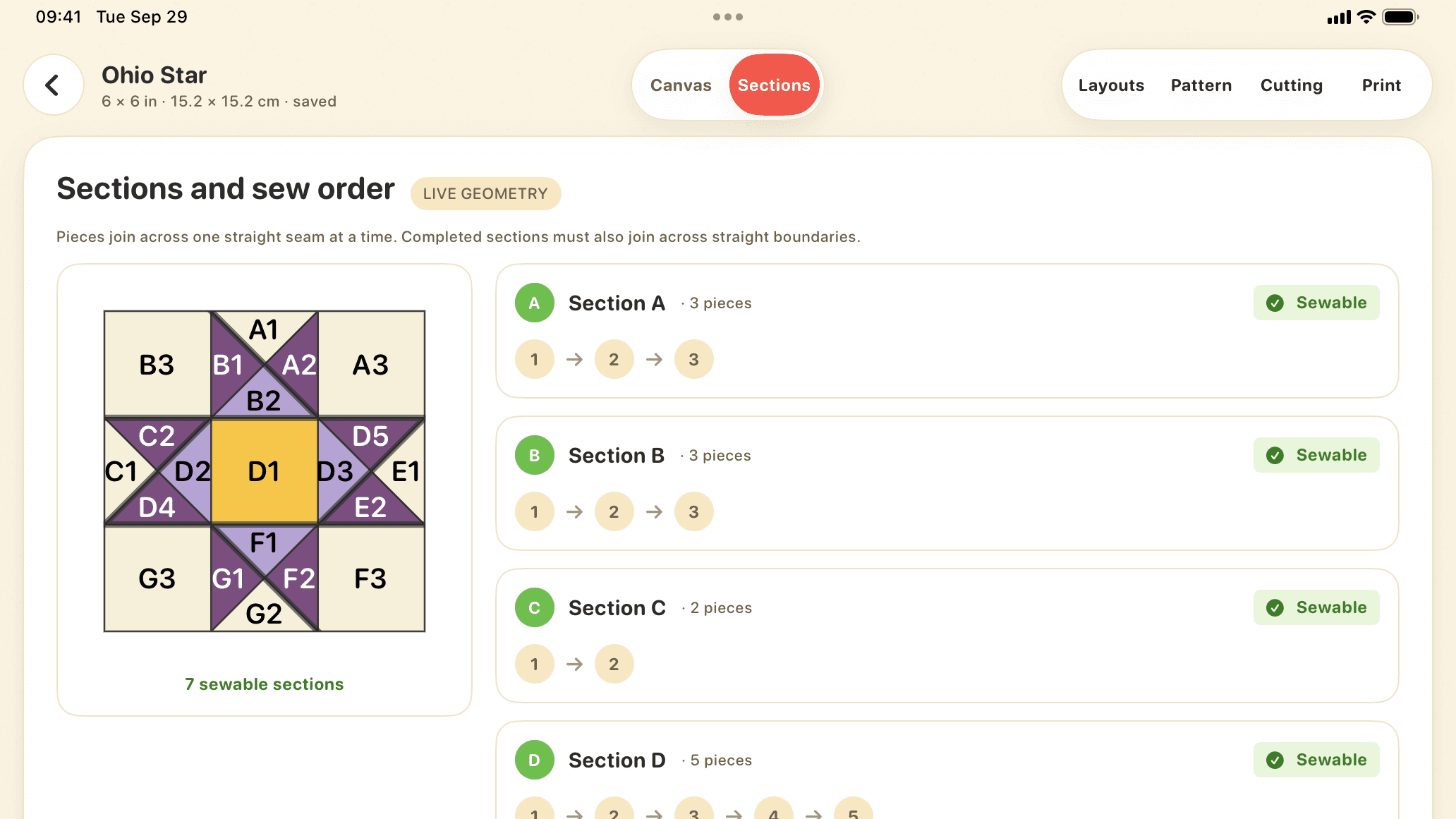
To calculate an FPP resizing percentage, divide the new finished size by the original finished size, then multiply by 100. For example, changing a 6-inch block to 9 inches requires 150% scaling. The catch: enlarging a PDF also enlarges any seam allowance already drawn on it.
The cleanest workflow is to change the finished dimensions in the source design and generate new foundations with the desired allowance. Piecework supports this for patterns created in the app; it does not import arbitrary purchased PDF patterns for editing.
1. Start with finished dimensions
Use the finished block size, measured between the outer seam lines. Do not use a page edge or a foundation's cutting boundary as the original measurement. An unfinished block includes the outer seam allowance and is larger than its finished size.
When scaling proportionally, apply the same factor to width and height. A 6 × 8 in block enlarged to 150% becomes 9 × 12 in. Changing only its width changes the shapes and proportions of the design.
2. Calculate the percentage
Scale (%) = new finished size ÷ original finished size × 100.
These examples start with a 6 in (15.24 cm) finished square block. The percentages describe the design area, before restoring the desired seam allowance.
| New finished size | Scale |
|---|---|
| 4 in / 10.16 cm | 66.67% |
| 6 in / 15.24 cm | 100% |
| 8 in / 20.32 cm | 133.33% |
| 9 in / 22.86 cm | 150% |
| 12 in / 30.48 cm | 200% |
Rounded percentages can introduce a small size difference. Check the new seam-line dimensions on a test print if the block must fit a precise quilt layout.
3. Keep the allowance separate from the design
If a PDF with a ¼ in allowance is enlarged to 150%, that allowance becomes ⅜ in. If the same PDF is reduced to 50%, it becomes ⅛ in. Neither is the original ¼ in.
For an existing PDF, follow the designer's resizing instructions. After scaling each foundation, the chosen allowance needs to be restored outward from the section's seam-line boundary. Preserve the interior seam lines and section labels. Scaling every page separately is especially troublesome for tiled sections; use the source file or request the intended size from the designer when available.
Choose one allowance consistently across joining sections. A ¼ in allowance is 6.35 mm; a 6 mm allowance is a separate choice. Piecework offers both, as well as a custom measurement.
4. Resize a source design in Piecework
- Open the pattern you created in Piecework.
- Open the Pattern panel and set the Finished size. Leave Keep aspect ratio on to preserve the design’s proportions.
- Review the seam allowance independently. Keep your selected ¼ in, 6 mm, or custom measurement.
- Review the updated layout and smallest pieces, then open Print.
- Export new foundations on US Letter, A4, or a copy-shop sheet.
Piecework preserves the specified seam allowance when the design size changes. Use the newly generated PDF at 100% scale; applying another percentage in the print dialog would resize it again.
5. Check the new foundations before sewing
Measure the calibration square and check the finished-size outline. For oversized sections, assemble the tiles before measuring the whole section. The printing guide explains the actual-size and tiling checks.
Reduction can turn manageable shapes into tiny slivers. Enlargement can create sections that are awkward to handle. Review those practical changes and sew a test block before relying on the resized pattern in a larger project.